 CoursePro
Your semester, planned for you.
CoursePro turns Canvas into a plan you can act on: every assignment ranked by when it’s due and what it’s worth, focus sessions that get it done, live grades, habits, and reminders that reach you even with the app closed. Free to use right now.
Works with your school’s Canvas. You never share your school password.
Annotated Bibliography
1.5 hrLab 4: Osmosis Prelab
40 minLab Report 2
2 hrReading Response 5
30 minWebAssign 3.4: Derivatives
45 min
Check off the top task and watch the next one move up.
Everything you need to stay ahead
The five features you’ll use every day, biggest first. Real screens from CoursePro, shown with a sample student’s classes.
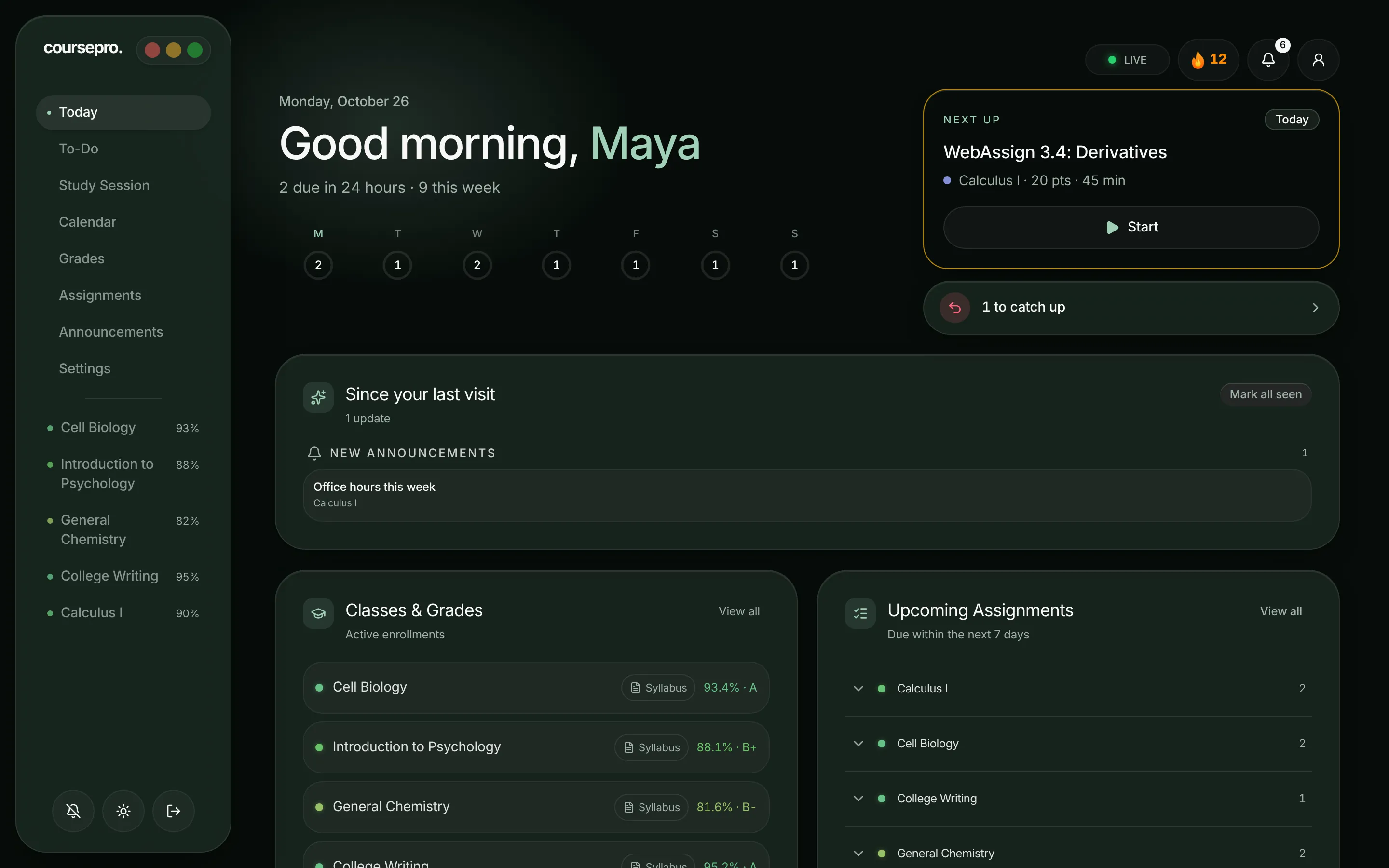
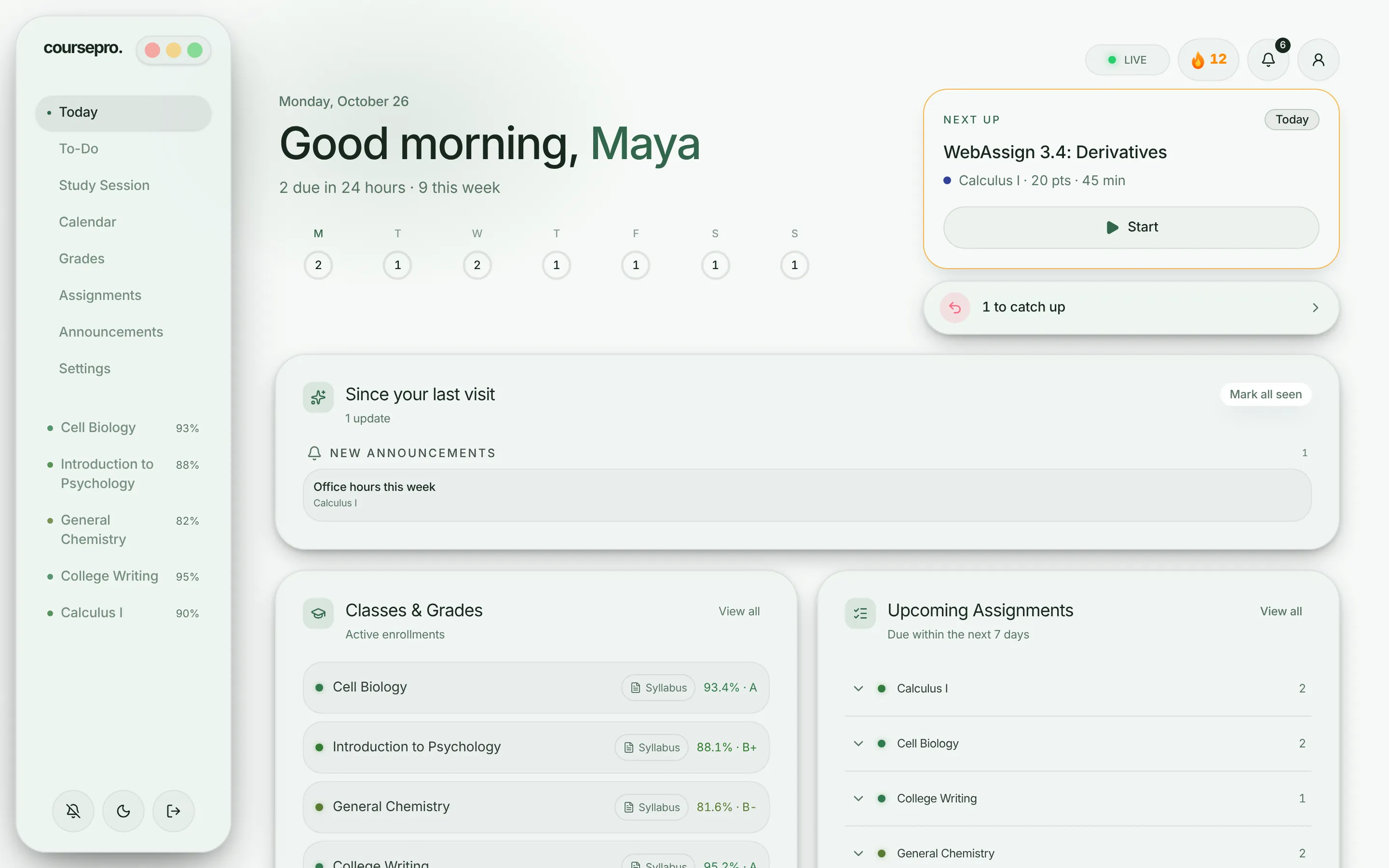
Know exactly what to do next.
Open CoursePro and your day is already planned: the most important assignment on top, with one button to start it.
- Your week as seven circles, so nothing sneaks up on you
- Anything overdue gathered in one place to catch up on
- Cards you choose: grades, announcements, workload and more
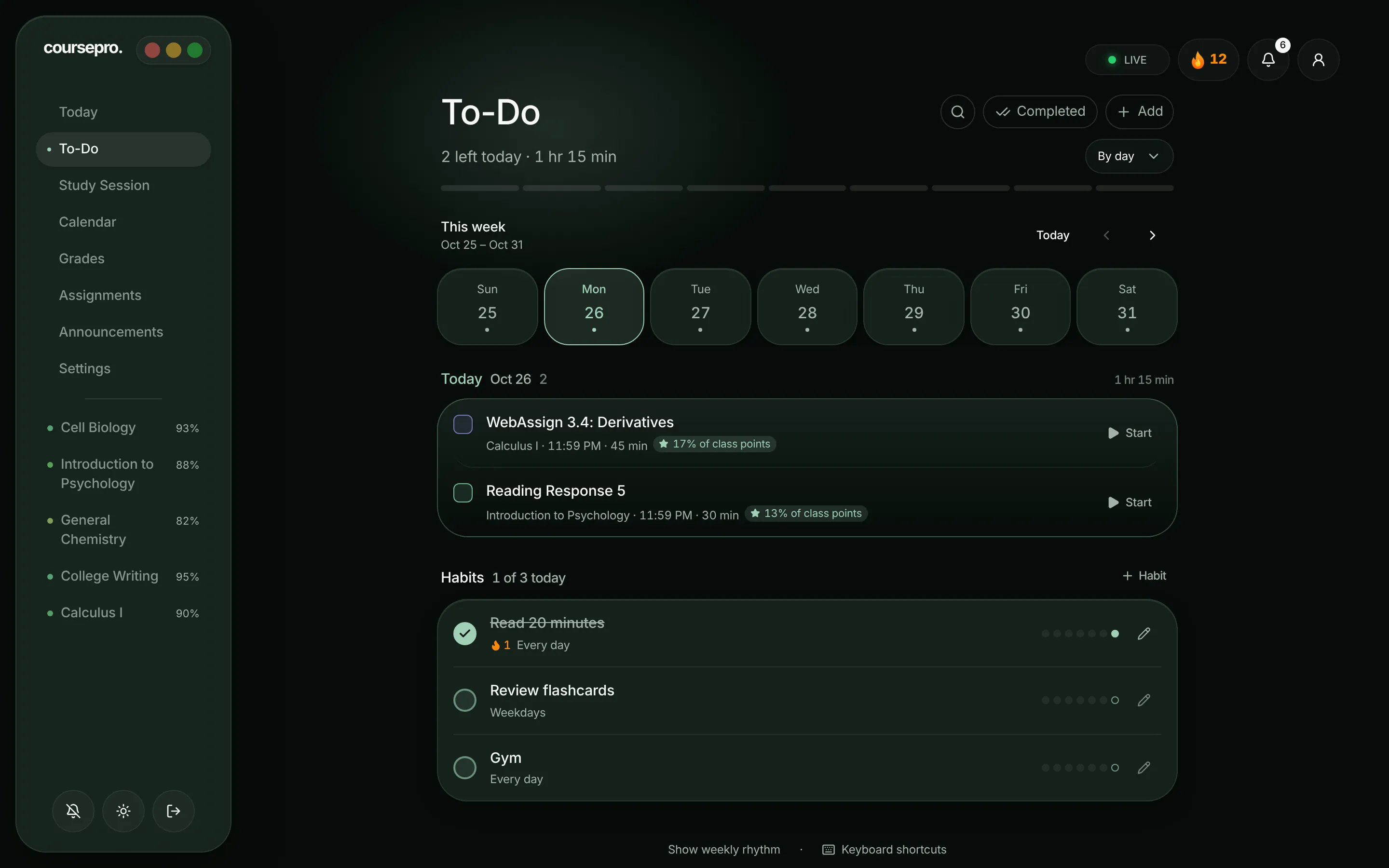
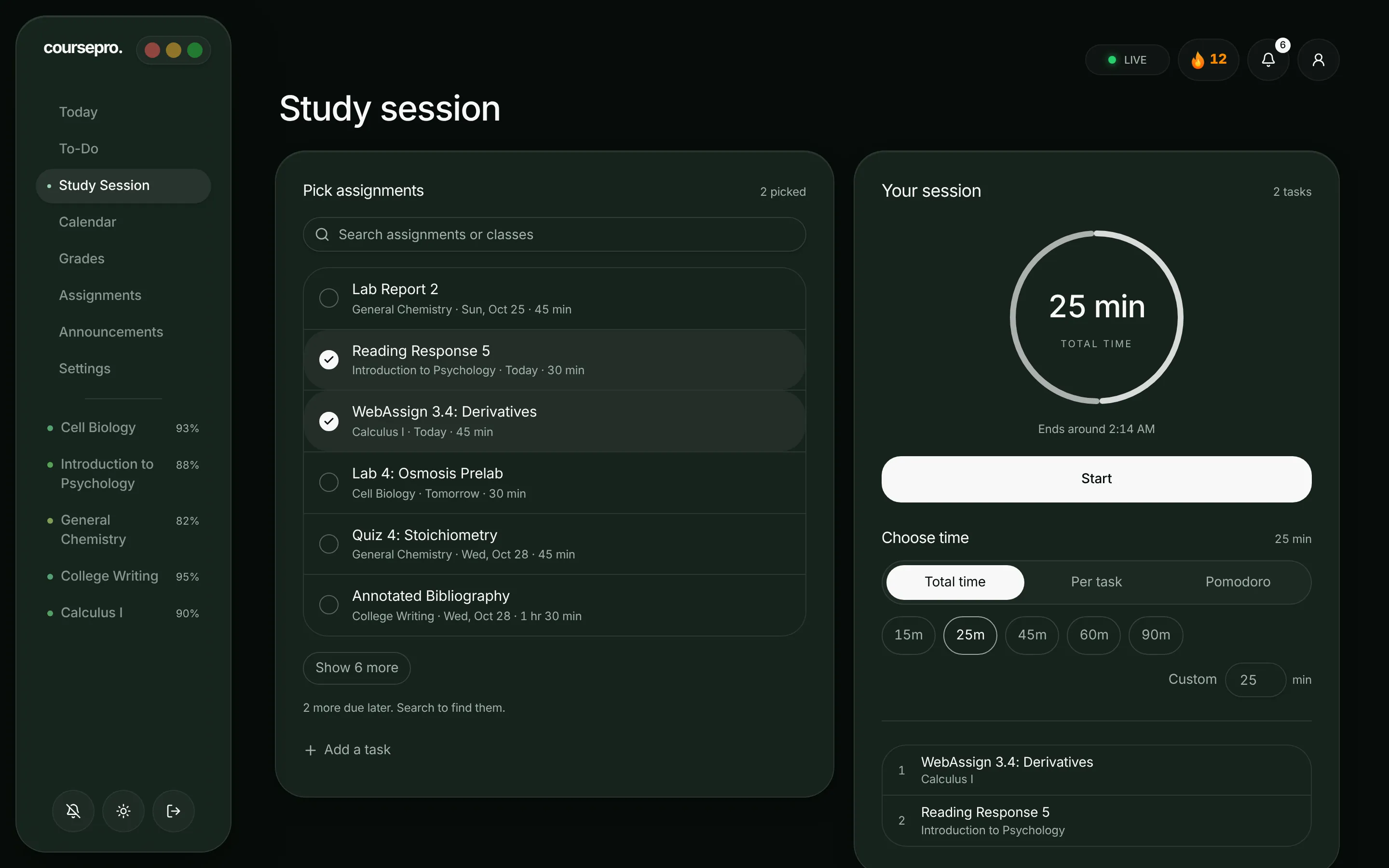
Every assignment, in the order to do it.
Each day's work with how long it takes and how much it counts, with your own tasks and habits in the same list.
- “2 left today · 1 hr 15 min”, always up to date
- Grouped by day, by class, or by impact on your grade
- Quick add, steps for big work, and daily habits with streaks
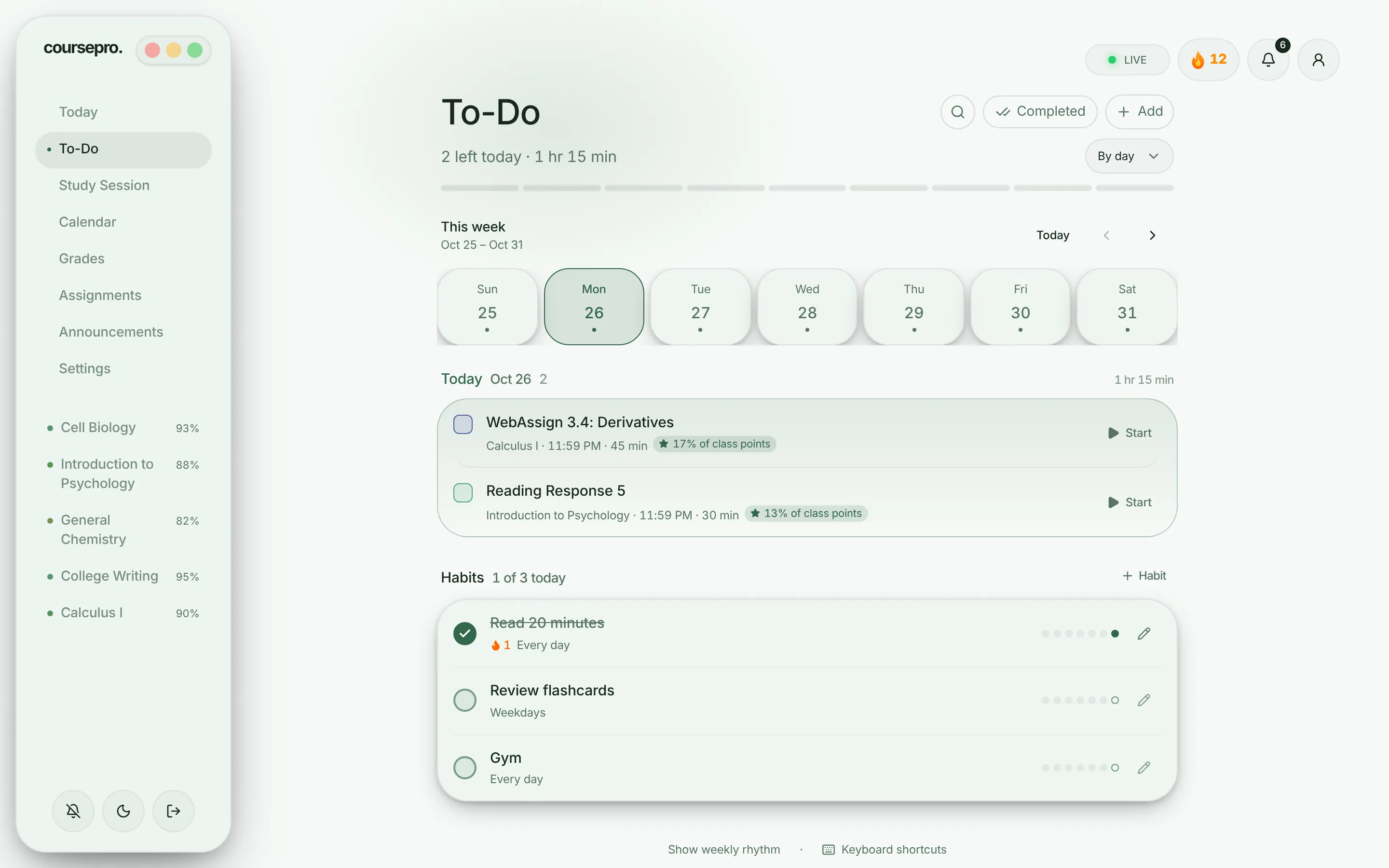
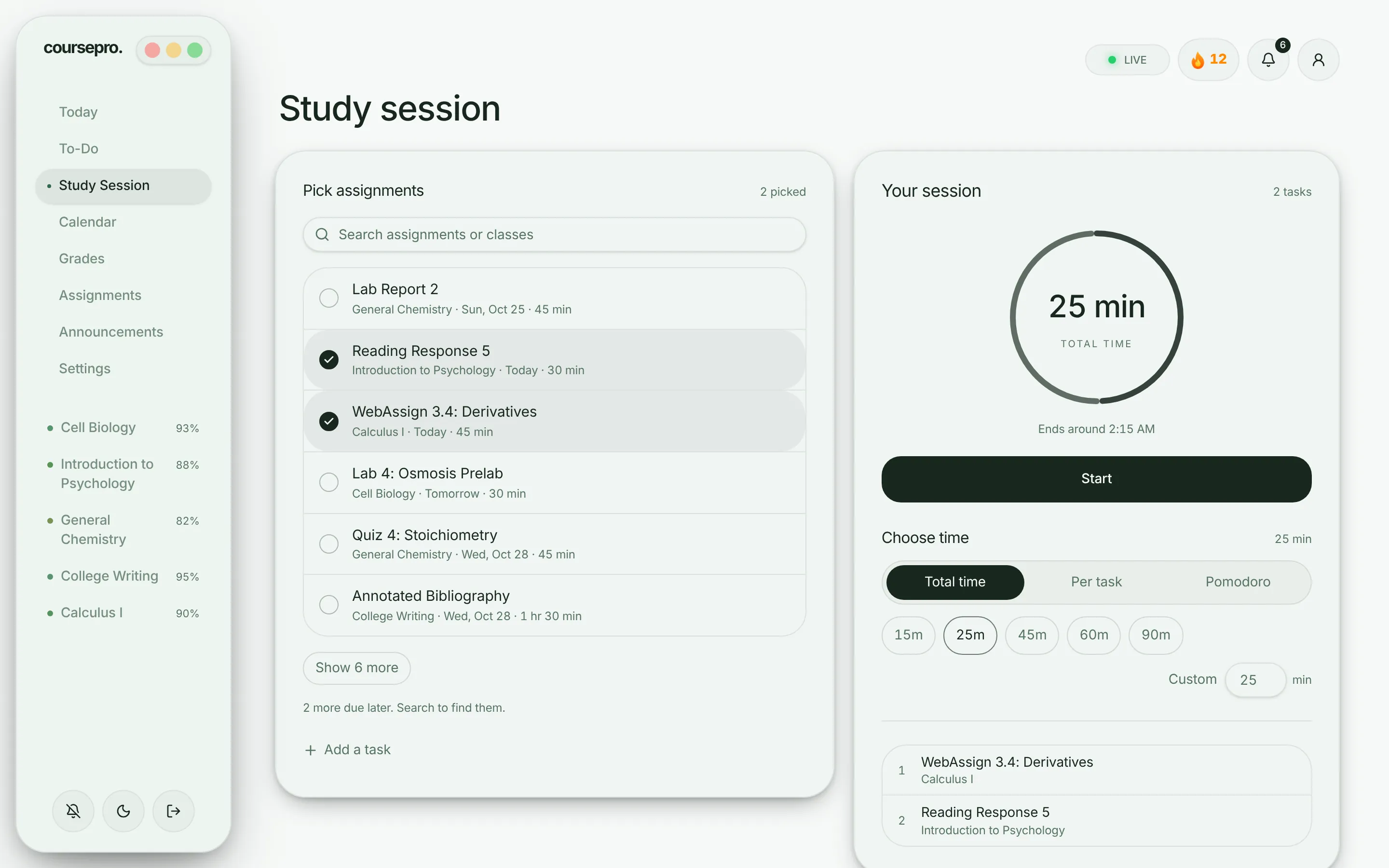
Turn a to-do list into focused work.
Pick what to work on, choose how to split the time, and start. CoursePro keeps the clock and the order for you.
- Total time, time per assignment, or Pomodoro
- White or brown noise to block out the room
- A clear finish time, so you can plan the rest of your day
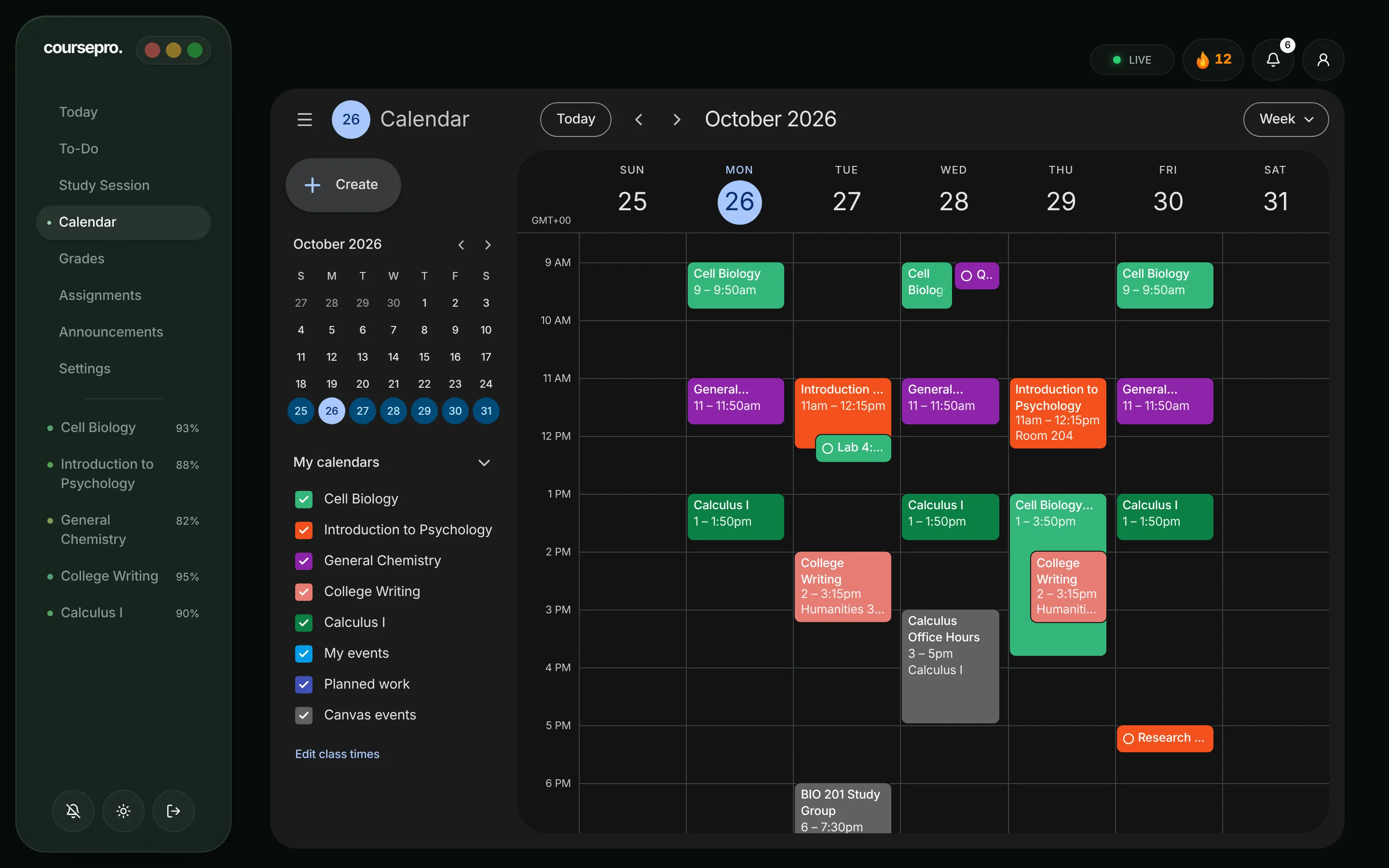
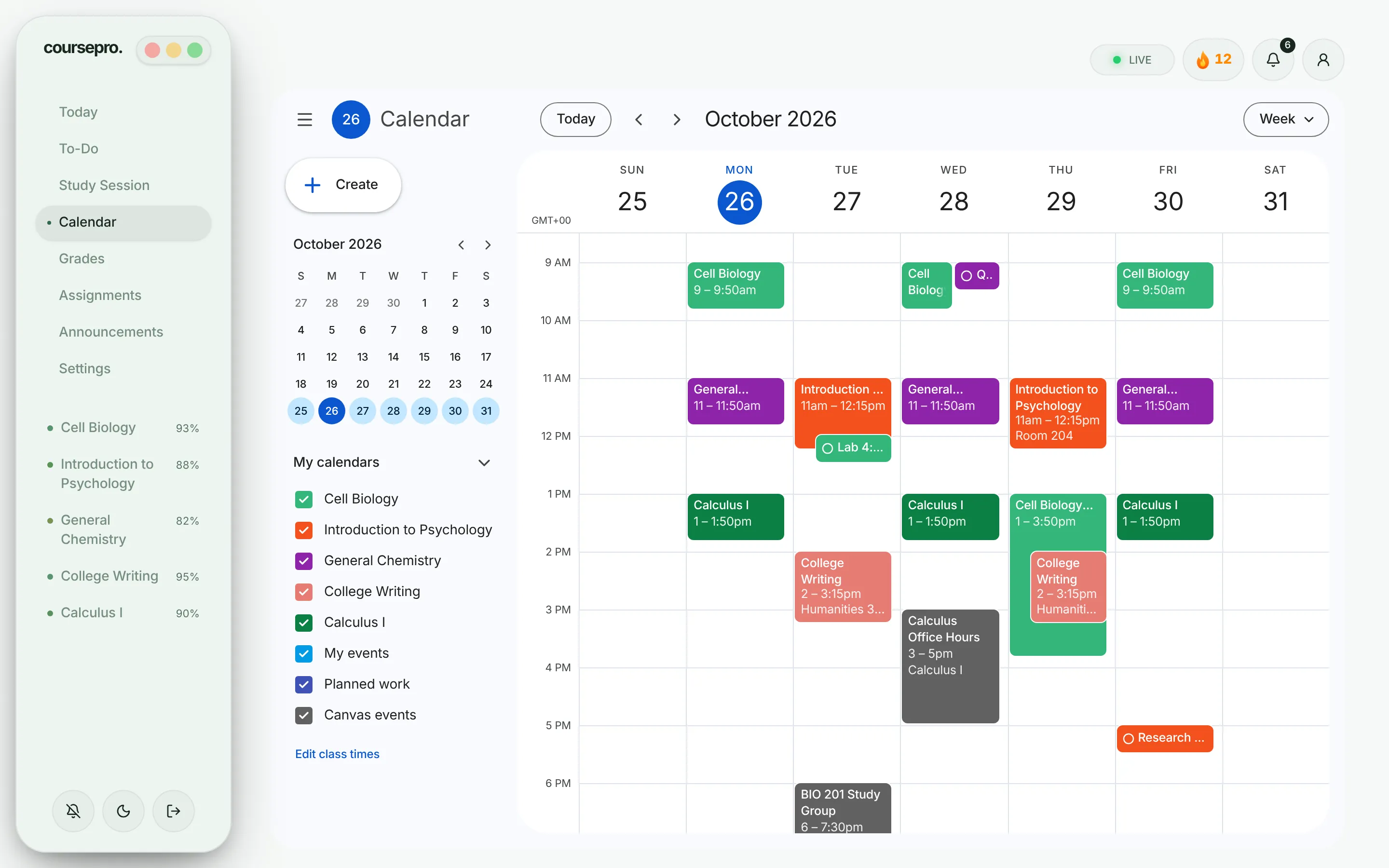
Your whole week, at a glance.
Classes, your own events, planned work and every due date on one calendar, in day, week, month or schedule view.
- Class times pulled straight from your syllabus
- Click any open slot to add an event
- A color for every class, with keyboard shortcuts
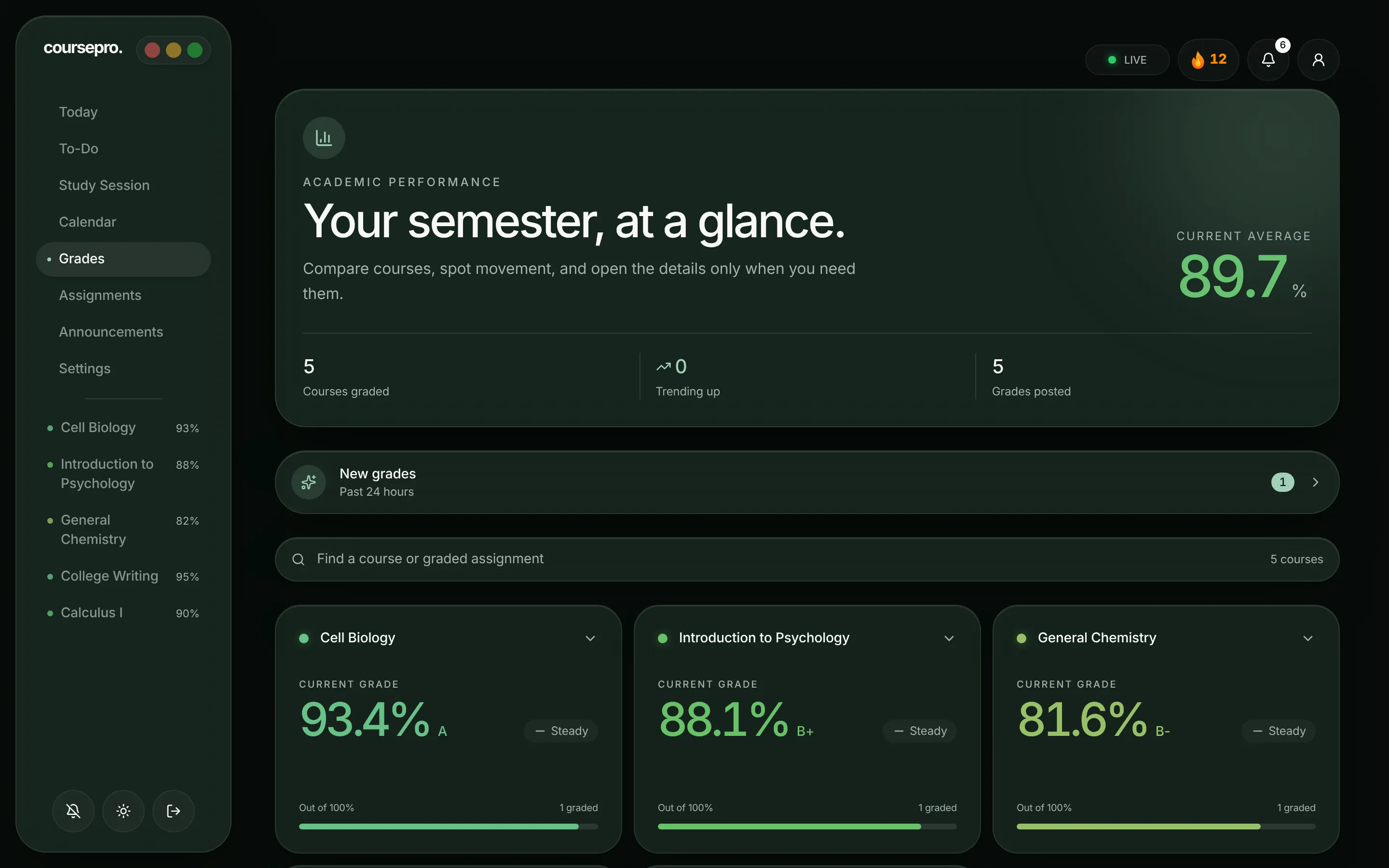
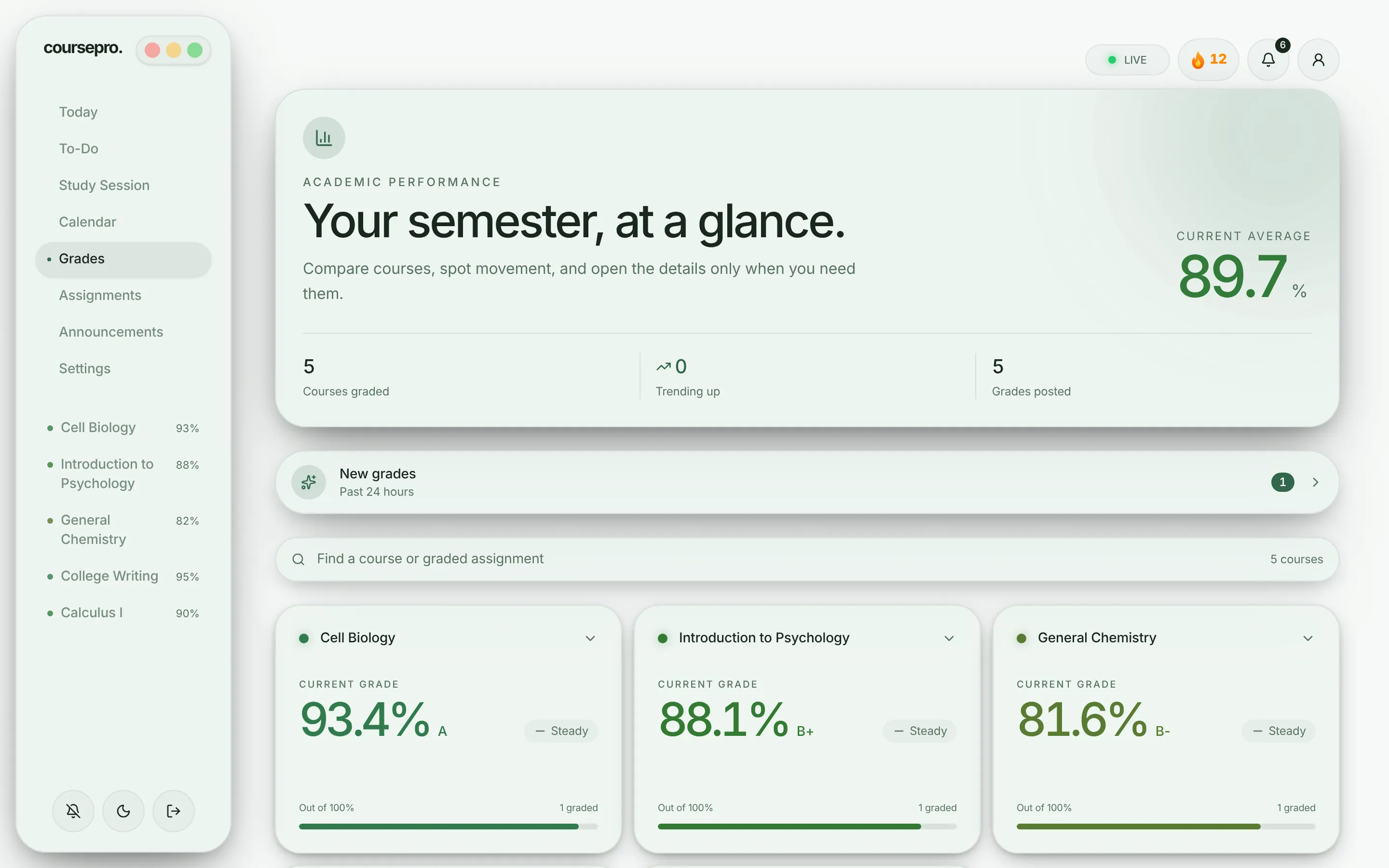
Every grade, and what it takes to raise it.
Live grades for every class, the grades posted in the last day, and exactly what you need on the final.
- Your average across every class at a glance
- New grades from the last 24 hours, newest first
- A final grade calculator that uses your class's Canvas weights
Canvas tells you everything. CoursePro tells you what’s next.
Never miss a thing
The quiet helpers that keep you a step ahead, so a deadline, a habit or a final never catches you off guard.
Reminders that reach you
Before class starts, the night something is due, and the moment a new grade posts. Even with CoursePro closed.
Habits with streaks
Reading, flashcards, the gym: tick them off each day under To-Do and watch the streak grow. Days off never break it.
What you need on the final
Pick the grade you’re aiming for and see the exact score that gets you there, for every class.
Everything in CoursePro
Every feature, in one place. It all works together, and it all syncs.
Plan your work
Turn a pile of deadlines into a plan you can finish.
- Quick add
- Type “Read ch4 bio fri 30m” and it lands on the right class, day and length.
- Your own tasks
- Add work for any class, or anything outside school, right next to your Canvas assignments.
- Steps for big work
- Split a project into small steps. Every step you tick moves its progress forward.
- Impact on your grade
- See what share of a class's points each assignment is worth, so effort goes where it counts.
- Time estimates
- Every task shows how long it should take, and each day adds up its hours.
- Four weeks ahead
- Browse four calendar weeks day by day and get ahead before the rush.
- Completed history
- Everything you finished, from the last two days to the last two months.
- Keyboard shortcuts
- Move, finish, start and add without the mouse: j, k, x, s and n.
Focus and momentum
Get started faster, and keep going longer.
- Quick Pomodoro
- Start a 25-minute focus block from Today. It keeps running as you move around.
- Focus sounds
- White or brown noise during a session, to drown out the room.
- Daily streak
- Show up each day to grow your streak, with a freeze for the day life gets in the way.
- Weekly rhythm
- See which days you really get work done, and plan around your real week.
- Workload heatmap
- Spot heavy weeks a month ahead, before they turn into all-nighters.
Grade tools
Know where you stand, and what to do about it.
- New grades
- Every grade posted in the last 24 hours, newest first, on its own page.
- Final grade calculator
- Choose the grade you want and see exactly what you need on the final, using your class's weights from Canvas.
- Free grade calculator
- Try what-if and weighted grades on the free Canvas grade calculator, no account needed.
Classes
Every class, organized in one place.
- Class schedule
- Add your class times once, or pull them from your syllabus, and get reminded before each class.
- Announcements
- Posts from every class in one feed. Read the whole post and dismiss what you've seen.
- Since your last visit
- New grades, new posts and anything that just became urgent, as soon as you open CoursePro.
- Nicknames and hidden classes
- Rename “BIOL-2010-04 FA26” to “Bio”, and hide the classes you don't need to see.
Always in sync
One account, on every device you use.
- Every device
- Ticks, tasks, habits and settings follow you from laptop to phone within moments.
- Quiet hours
- Choose the hours CoursePro stays silent, and pick exactly which alerts you get.
- Signed-in devices
- See every device signed in to your account, and sign out any of them.
- Your dashboard, your way
- Choose and arrange the cards on Today. CoursePro sets them up from what you care about.
- AI assistant
- Connect Claude or ChatGPT with read-only access and ask “What's due this week?” in plain words.
Make it yours
A workspace you'll actually want to open.
- Five themes
- Forest, Blue, Violet, Rose and true Black, each in light or dark.
- Backgrounds
- A solid color, a soft glow, or a blurred wallpaper behind everything.
- One-minute tour
- A short animated walkthrough of CoursePro, whenever you want a refresher.
CoursePro for iPhone
A native app built for your phone, with the same account. Coming soon to the App Store.
- Home Screen widgets
- Today, To-Do, Habits, What's Due and Grades. Tick things off without opening the app.
- Lock Screen and Live Activities
- Your study timer and tonight's deadlines on the Lock Screen and in the Dynamic Island.
- Siri and Shortcuts
- Ask “What's due tonight in CoursePro?”, or put it on the Action button.
- Swipe to finish
- Swipe right to mark work done, or left to start studying it.
- Class files
- A folder for every class, saved in iCloud Drive.
- The same account
- Your tasks, habits, grades and settings, exactly as on the website.
What CoursePro can see
You connect with an access token you make in Canvas yourself. Here is everything it lets CoursePro do, and what it never does.
Read the Privacy Policy or email support@canvaspro.app with any question.
It reads
- Your courses and class names
- Assignments, due dates and whether you've submitted
- Grades and how each class weights them
- Announcements from each class
It never
- Asks for your school password
- Submits, edits or deletes anything in Canvas
- Sells your information or uses it for ads
Remove the key or delete your account from Settings whenever you like. You can also revoke the token in Canvas under Settings, Approved Integrations.
Set up in about a minute
You never type your school password into CoursePro. The key only lets it read your courses, and you can revoke it in Canvas at any time.
Create a free account
An email and a password. That's all CoursePro asks for.
Make a key in Canvas
In Canvas, open Account, then Settings, and click New Access Token. Copy the key it shows.
Paste it in Settings
Your classes, grades and deadlines show up right away.